.png?height=120&name=logo_blue%20(1).png)
Step by Step guide for the deletion of Customers from our platforms
STEP 1 (Service)
Deletion requests on the Service Platform:
- A customer can actively request deletion of their own account by navigating to: My account > Delete your Data > Request account deletion. The customer will receive an email confirming that we received his request. The deletion request will trigger a notification in the Support Pipeline in Hubspot.
- If a customer is requesting deletion of a colleague’s account (fx stopped working for the company) get in contact with the requester and ask them to download whatever files they might still need, as all documents uploaded by the colleague will be deleted as well. Give them 48h to retrieve any data and then delete the contact (see instructions on how to delete a Service Customer account below).
- If a customer is requesting deletion of all accounts tied to a company (must be the account owner), reach out and ask them if they would like to keep the TM/TB as they will be deleted as well. Also check if there are any other contacts in the company outside of his team, confirm the names with the requester and include them in the deletion if requested (see instructions on how to delete a Service Customer account below).
NB: Company subsidiaries are not considered the same company. - If a customer is sending a request for deletion via email, make sure to forward the message to support@easytranslate.com, so we have the request in HubSpot and the support team can start the deletion process.
- If we received the request to be deleted via phone/verbally, we should write to the customer and have them confirm in writing that they wish to be deleted to support@easytranslate.com. If they reply to you directly, please forward to support@easytranslate.com.
- Automatic deletion of accounts after 5+ years of inactivity: The automatic deletion will trigger a notification in the Support Pipeline in Hubspot. No email is sent out to the customer and support does not have to reach out. Delete the TM/TB ONLY if there are not other users of the same company that are still active.
NB: Company subsidiaries are not considered the same company.
How to delete a Service Customer account:
a) Search for the contact in the customer list (https://adm.easytranslate.com/client) and click on “edit client user”
b) On this page change the password of the account - it is needed later in the deletion process.

c) Impersonate the customer and go to “My account” -> “Delete your data” -> “Delete all data”.


- d) Click on “delete all data” - The system will now ask you for the password you have just created.
e) Confirm the deletion.

STEP 1 (Software)
Deletion on the Software Platform
On the Software platform a customer can request deletion of either the entire company account or just their personal data. Please go through the following steps to ensure proper offboarding and deletion.
NB: BEFORE ASKING TECH TO DELETE A USER OR AN ENTIRE ACCOUNT, MAKE SURE TO COPY ALL ASSOCIATED EMAIL ADDRESSES SO WE KNOW WHO TO MARK AS DELETED IN HUBSPOT.
Deletion of Software Company account:
a) A customer’s Team Administrator can request deletion of the entire account (and sub-accounts) including all personal data, files etc.by navigating toSettings > Account > GDPR
b) They should tick all boxes and confirm the deletion request by clicking the red button “Request account deletion” (see screenshot). The deletion request will trigger a ticket in the Support Pipeline in Hubspot.
c) If you have a customer asking to be deleted either via email or phone, please ask them to follow steps a & b outlined above.
Deletion of Software User:
a) A User who is not an Team Admin can only request deletion of their own data, including their picture and chat content if necessary by navigating to:
Settings > Account > GDPR
b) They confirm the deletion request by clicking the red button “Request account deletion” and can request deletion of other data by ticking the respective boxes (see screenshot). The deletion request will trigger a ticket in the Support Pipeline in Hubspot.
c) If you have a customer asking to be deleted either via email or phone, please ask them to follow steps a & b outlined above.
Confirming the deletion request
Once a deletion ticket for either an entire company account OR a single user deletion on Software is received, please do the following:
- Support sends an email to the customer summarizing all features and specific user accounts that will be deleted based on their company deletion request
- Please ask the customer to send a written confirmation that they have read and understood what will be deleted to support@easytranslate.com. (Once deleted we can’t reverse the process).
- If the customer does not get back to you, please send them a reminder after a week outlining that we can’t delete the account before we have the final confirmation.
- Before continuing with the deletion of an account support has to reach out to Finance and make sure that there are no pending invoices, disputes etc. If there are: please do not proceed with the deletion and let the customer know that the deletion process will be continued once the issue has been resolved.
- As soon as we have the written confirmation from a customer requesting a company or user deletion you need to log a JIRA TICKET called Software Customer Deletion Request and post the ticket number in the urgent product support channel and mention it concerns a Software deletion.
- The relevant tech team representative will oversee the deletion process.
- The relevant tech team representative will reach out to Support as soon as the deletion is completed. The tech team should take no more than 3 working days to delete the account. Please send a reminder to the tech team if you have not heard back from them after 3 days.

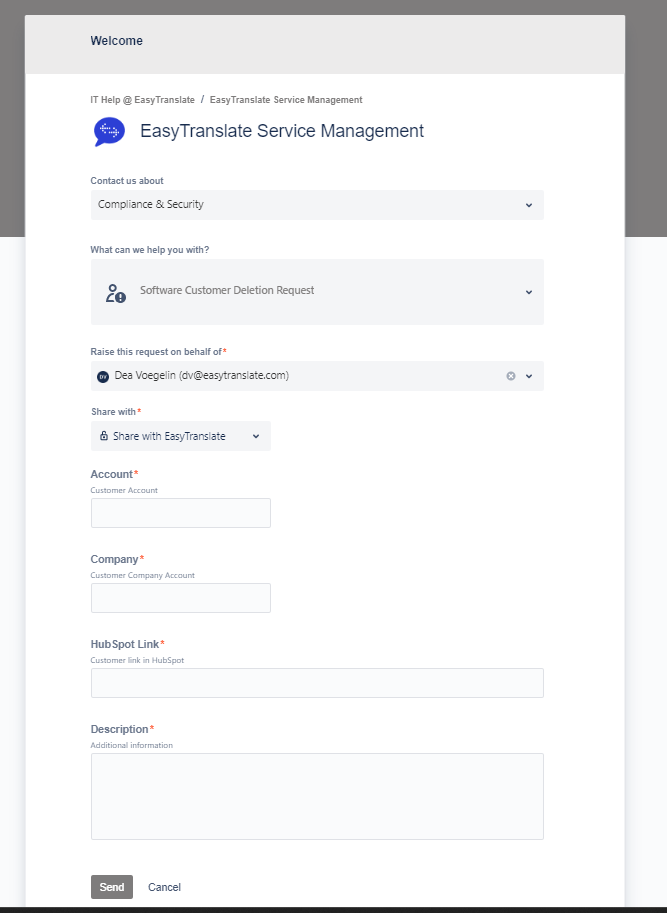
Fields:
Account
Add email of the account admin, please add a list of all remaining users (main and subaccounts) in the comment field as these will all need to be deleted. You need this information to make sure to delete all their data in HubSpot, Phrase etc. as well (See under STEP 1 - Software above)
Customer Company Account
Please add the URL to the main account that needs deletion (=Team Identifier). Put a comment about possible sub-account in the Description field.
Hubspot link
Please add link to the Company HubSpot account
Description
Please add any extra information (email lists of account users etc.)
STEP 2: (Service and Software)
Delete Data in Hubspot
In case of a data deletion request do the following:
- Search the customer(s) email and delete any files they may have attached to their entry (e.g. in email attachments etc.).
- Make sure the Lifecycle Stage property is set to “Other” and Lead status is “Unqualified”.
- Ensure the contact is non-marketing contact and is unsubscribed to all communication
STEP 3 (Service and Software):
Deletion of Data in Phrase:
Depending on the deletion request, different action must be taken to delete customer data from Phrase:
- Customer asks for only his own data to be deleted (company remains): all files and TM/TB remain in Phrase and no action is needed.
- Customer asks for the deletion of a colleague: all files and TM/TB remain in Phrase and no action is needed.
Deletion of all company accounts:
- Get in touch with the customer and ask them if they would like to keep their TM/TB. If yes, download before starting the Phrase clean-up. DO NOT YET DELETE THE TM/TB!!
- Go to the project page in Phrase and filter for the company name - remove all listed projects
- Look for all TMs associated with the company. Open them up and see if there are more projects associated with the company and delete them.
- Delete all TMs and TBs.
Deletion of Phrase data from automatically deleted accounts:
No need to delete any files from Phrase as they are deleted after 1 year automatically. Check if there are other active users tied to the company. If yes, do not delete the TM/TB, otherwise, delete.
STEP 4 (Service and Software)
Deletion of Email communication and Documents:
- Delete all 1-1 email communication with the customer
- Search widely in GDrive by enabling advanced search with the toggle to the right of the search field (see screenshot below).
- Delete any stored CV or other materials received from the customer.

STEP 5 (Service and Software)
Once you have the confirmation from tech that the user is deleted (Software, automatic on Service) and you have completed all the other steps in the protocol you need to send an email to the customer to confirm that we have deleted their data and make sure it is connected to the ticket..
STEP 6:
When done, slack the HS contact link(s) to the responsible person in the OPS team via the “data-subject-request” Slack channel so the property “Data subject request” can be set to “deleted”. This is extremely important as we keep track of all deleted customers this way.
Timeline
In order to be compliant all deletion requests need to be executed within 5 days from reception of the deletion notification. The customer needs to be informed about any delay if handling of the request will take longer than 5 days - inform the customer about the reason for the delay (fx pending payments, ongoing projects, disputes etc.) via email and make sure that this correspondence is logged to their HubSpot contact for traceability.
If needed, redirect the customer to the respective data controller.