.png?height=120&name=logo_blue%20(1).png)
Support monitors deals created from LaaS and EasyOrder to catch any mishaps and ensure smooth operation.
Hubspot late delivery Pipelines
What are the filters?
1. Unassigned projects
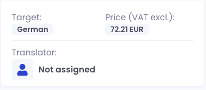
What are unassigned projects?
Projects that have no linguist assigned. This happens for 2 reasons:
- there is no translator for a given language combination in the team for this customer
In this case we need to get in touch with VM to find a fitting translator and have tech reassign the task to them.
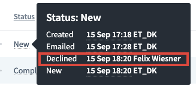
2. If there was a translator assigned, but they declined for whatever reason
It’s always good to make sure the translator understands why they were assigned, so we contact them before we do anything else.
“What was the reason you declined this project; would you accept a different deadline? Please be aware that you agreed to be assigned to this customer, so it’s important you have a conversation with the client if you feel you won’t be able to do it in time.”
It depends on what they answer here. You might be able to reassign the same linguist, but if they refuse, you can proceed like in the first example. This happens more often than you think, especially with linguists new to our workflow, so keep that in mind.
2. Late delivery with no preferred deadline

This one speaks for itself, though there is a bit more to it.
The reason a project ends up here is just what you think – the deadline has passed, and the project is not visibly complete in LaaS.
Those two last points are important to take note of.
A project can be 100% done in Memsource but the LaaS platform does not sync up correctly. So, it’s always good to check a project’s status in MS before you start sending reminders to linguists.
With that out of the way, here is some “best practice” on how to deal with this Pipeline.
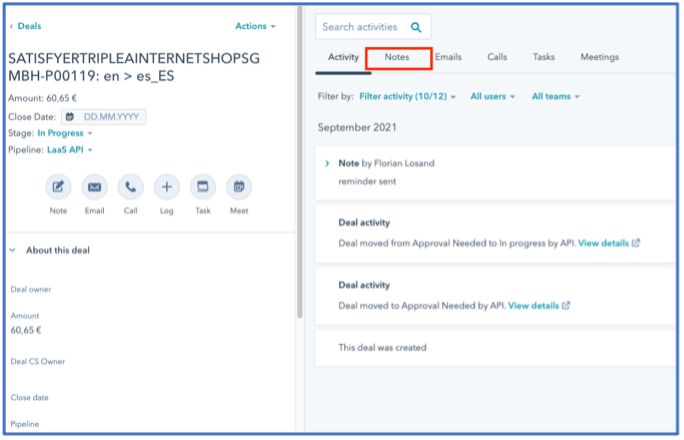
Make sure you’re the first to look at a certain late project. Check notes and emails linked to this task.
Open the card view and copy the project ID, and open it up in MS.
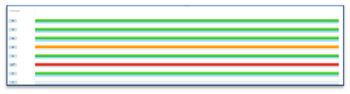
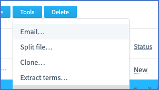
If you see red and orange progress bars, select the corresponding tasks and go to Tools > Email
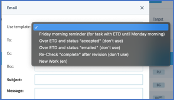
- Select an email template that matched the status, for example “over ETD and status ‘emailed’”
- Fill in the Project ID in the subject line and click “send”.
That’s it! All the other info in the mail in {these brackets} is filled in automatically.
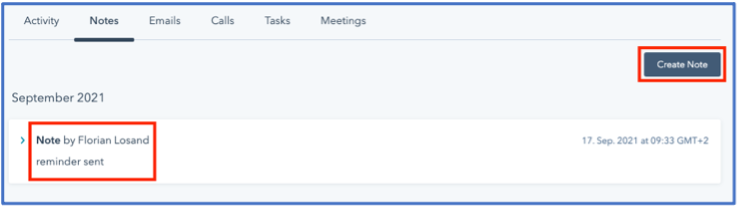
Back in Hubspot, create a note saying something along the lines of “reminder sent” to make keeping track of it a bit easier.
After all this, you will usually get a reply by the supplier. Normally it’s just “sorry, will finish today” or some variation thereof.
If the translators have technical issues, you will learn how to assist them in the Memsource training.
Important note: LaaS allows clients and vendors to communicate directly. More often than not, you will get a reply “but the client and I agreed on a different DL…”.
You can check that easily by logging into LaaS and looking at the chats. In Hubspot, you can set the preferred deadline and it will be moved to that pipeline once the new date has passed.
3 Late for preferred deadline

This one is basically the same as number 2. The exception is that the preferred deadline has been passed, and it has little to do with the date we calculate based on the translator’s availability. You can proceed the same way as well, just make sure to check some additional things beforehand:
- Was this set by the customer?
The easiest way to see it immediately is when the PDL is before the expected delivery. Look at LaaS chats and kindly let the translator know that it would be nice, if possible, to finish the task based on PDL.
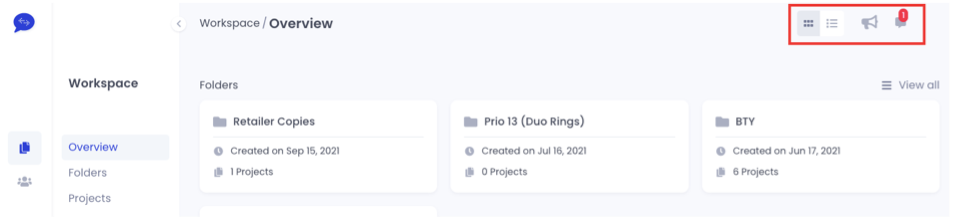
(Chat section in LaaS, make sure to check if there was an agreement between client and translator)
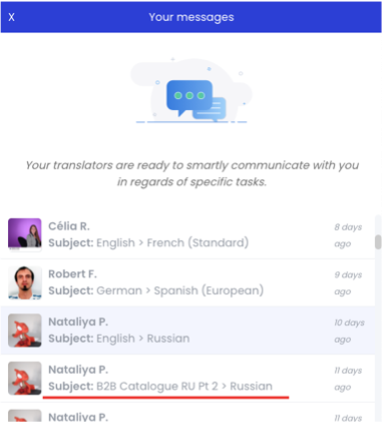
- Did you or another one in the support team set the date?
So, from Pipeline 2 you know that sometimes the translators ask for an extension. If even the additional time wasn’t enough, check LaaS chat, remind the translator, set a new date.
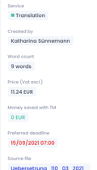
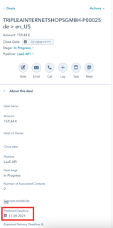
This should have you covered for 2 and 3. Communication is key, so keep in mind that CS can help reaching out to the client if there is a big delay.
If you notice a translator being late for a lot of projects, talk to VM and see if they can get in touch with the translator and possibly find a replacement.
4 Missing availability

This one is different from all the other Pipelines. The reason for projects landing here is that there was no deadline calculated after the task got assigned.
Why does this happen?
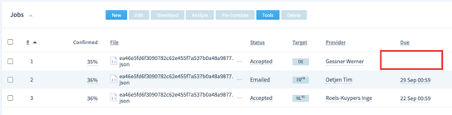
The DL gets calculated based on the translator’s availability setting in LaaS. If they don’t set up their calendar, we don’t know when they’ll have the time to work on this.
Reach out to the translator and ask them to finish setting up their account, always offer help since this usually happens to new translators after onboarding.
5 Late EasyOrders
At this point you know the drill for late and unassigned tasks. No need to go over the whole process again.
What’s important to remember is that EasyOrder customers appear to have a regular LaaS account, but you can spot them easily by the project's name(different from the ID in Memsource, only visible on LaaS).
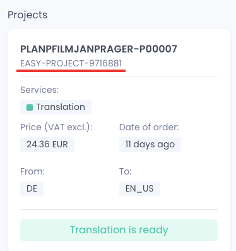
What does that mean?
These customers do not have access to LaaS whatsoever. No chats, no account settings, basically anything that’s a functional part of the LaaS platform itself (i.e., the self-service part). They receive a single confirmation mail with a link that lets them view the progress, and an email upon completion that contains a download link for the finished product.
That means if a project is late, we have to talk to the linguist in any case. Usually, the projects in this Pipeline have some technical issues.
https://app.hubspot.com/contacts/8932080/deals/board/view/4668678/