.png?height=120&name=logo_blue%20(1).png)
Step by Step guide for the deletion of Freelancers from our platforms
Step 1
Service Platform deletion request
- On the Service platform a freelancer can request account deletion by navigating to: My account > Delete your Data > Request account deletion (see screenshot below). This will trigger a notification in the Vendor Support Hubspot pipeline.
- If a linguist is sending a request for deletion via email, make sure to forward the message to translators@easytranslate.com, so we have the request in HubSpot.
- If we received the request to be deleted via phone/verbally, we should write to the freelancer and have them confirm in writing that they wish to be deleted to translators@easytranslate.com. If they reply to you directly, please forward to translators@easytranslate.com.

4. The system generates a supplier deletion ticket in the vendor support pipeline when a linguist actively declines the Terms & Conditions on the Service platform (see screenshots below). Please get in contact with the linguist, let them know what the consequences are and inform them that they have 24h to reconsider and accept before being deleted from the system. 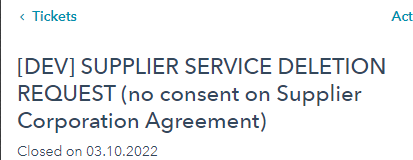

Software Platform
- Check if the linguist is also onboarded to the Software Platform. Don’t rely on the automation label on the Service platform but search for the person on the Software platform/check a recent export. Be aware that linguists in rare cases use different email addresses on Service and Software.
- If the linguist is onboarded to the Software Platform, get in touch with them and ask them to do the following: go to Settings > Account > GDPR and click the red button “Request account deletion” (see screenshot below). This will trigger a ticket in the Vendor Support Pipeline in Hubspot.

STEP 2:
Service account deletion
- Go to the freelancer’s Service Platform profile (follow the link in the notification email or look them up via their email address). Be sure to have the freelancer’s email address in Hubspot BEFORE you delete their account on the Service platform. You will need it to send the confirmation email to the freelancer once their data has been deleted.
- Go to the supplier settings and delete the account by clicking delete user.

Software account deletion:
- The vendor account deletion on the Software Platform is started when the linguist clicks the delete button. VM will receive a ticket in the Vendor support pipeline.
- When you receive the ticket go into the freelancer account (Settings > Account > GDPR) and click "delete account" which will trigger the automated deletion of all data, incl. their Stripe account. The relevant tech team representative does not need to be contacted.

- The system will alert you if there are any pending payouts (fx ongoing projects, projects just recently closed). In this case it will not be possible to trigger the deletion and you need to follow the steps below.
- Check if the linguist is paid trough Stripe or via manual payments. Continue with 5 if they are paid via Stripe. Move directly to 6 if they have to send us manual invoices.
- Linguists paid through Stripe:
If there are pending payments in the supplier account do the following :
a) go to Settings > History and find the latest invoice. Add 3 weeks to the invoicing date - that is when the account should be ready for deletion. Please schedule a HubSpot notification to remind you to finalize the deletion on that date.
b) Check if there are ongoing projects, note the project with the deadline which lies furthest in the future, add 3 weeks to that date - that is when the account should be ready for deletion. - Linguist paid manually via invoice:
Reach out to the relevant Tech Support Team representative and let them know to send an invoice request to the linguist. When the invoice is received, checked and approved in the system the deletion can be finalized.
IMPORTANT: always inform the linguists about any delay in the deletion process via email which needs to be logged in Hubspot.
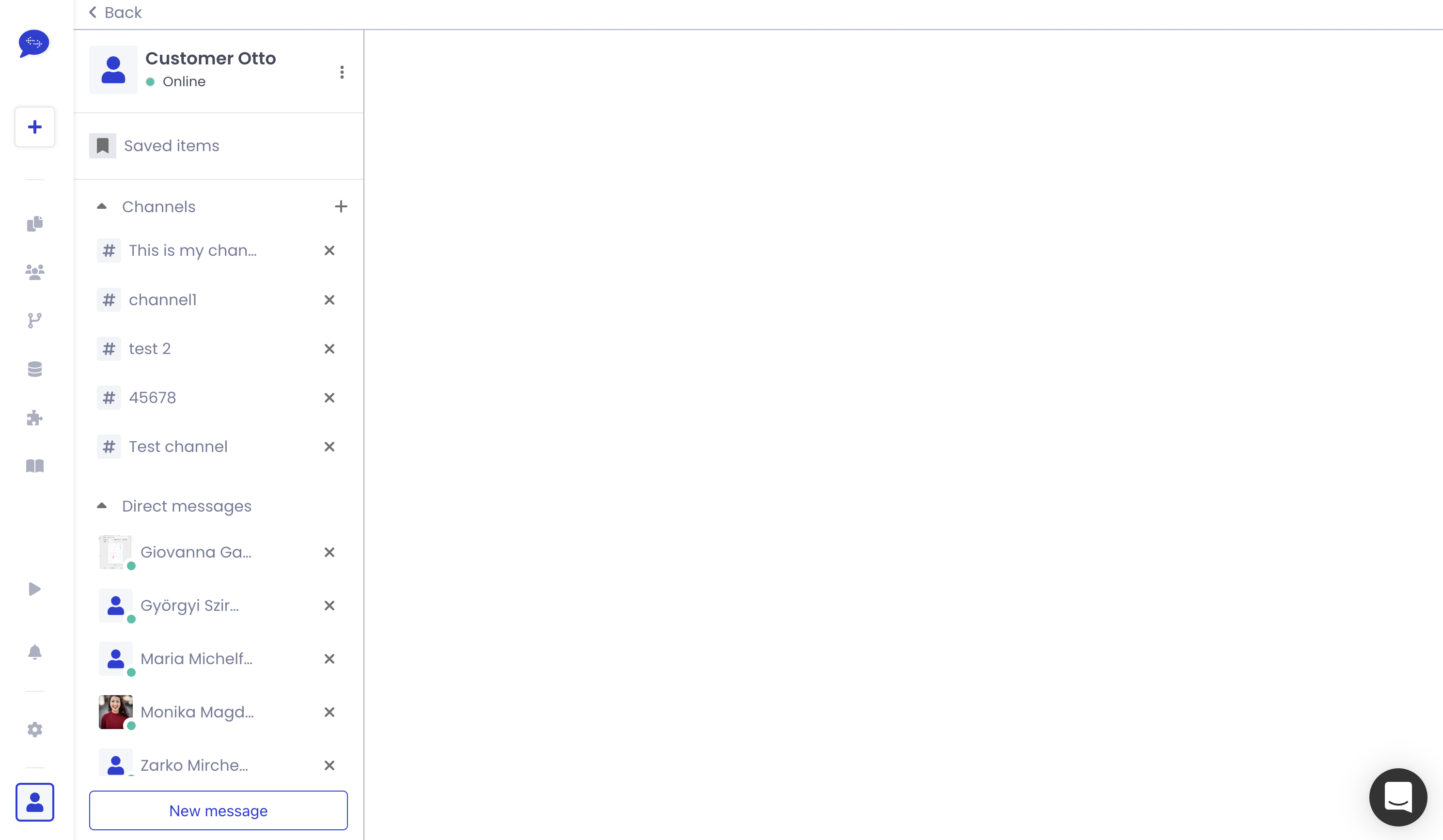
2. Make sure the linguist is removed from all customer chats by clicking on the x.
STEP 3:
Delete Data in Hubspot, Phrase etc.
- Go to Hubspot and do the following:
- Search their email and delete any files they may have attached to their entry (e.g., in email attachments etc.).
- Set the Translator Onboarding Status property to “Offboarded”.
- Set "Lead Status" to "Unqualified"
- Make sure the Lifecycle Stage property is set to “Other”.
- Set "Supplier" to "Yes"
- Make sure to unsubscribe them from any Communication Subscriptions
- Make sure they are set as a "Non-Marketing contact".
To change the status to "Non-Marketing contact", search for the contact in Hubspot, put a check-mark on the entry and click on "more". In the dropdown menu choose "Set as non-marketing contacts". NB: The entry will not be visible in the contact card before the end of the month.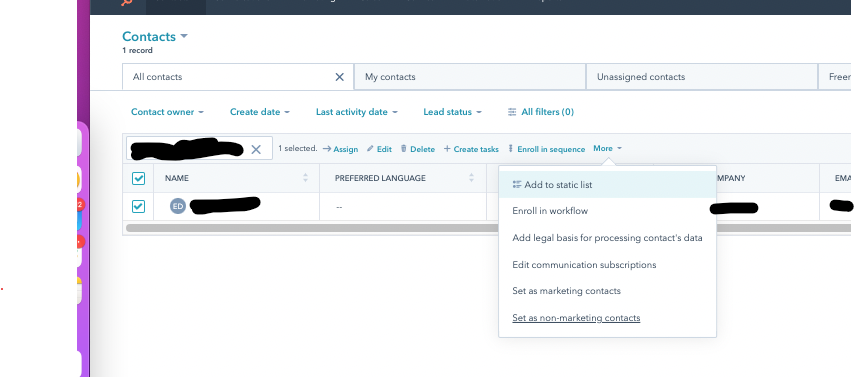
- Locate any existing Phrase profile of the freelancer and delete it.
- Locate any Learning Bank profile of the freelancer and delete it.
- Log their info in the CSV Onboarding VM spreadsheet, under the “Resigned” tab.
- Remove the freelancer from any and all calling lists like e.g. the SMS lists used in municipal interpretation coordination.
- Notify the Support Team via the software-vm_support Slack Channel. Provide them with the name and email address of the freelancer and ask them to check all relevant freelancer lists on their end and delete.
- Remove the freelancer from all sourcing sheets.
- Remove the freelancer from all Slack channels
- You can search widely in GDrive by enabling advanced search with the toggle to the right of the search field: See screenshot below
- Delete any stored CV or other materials received from the freelancer.
- Send email to freelancer to confirm we have deleted their data, and CC translators@easytranslate.com so it’s logged in HubSpot.

11. When done, slack the relevant contact in the OPS team. Provide the link to the deleted freelancer so their property “Data subject request” can be set to “deleted”. This is extremely important as we keep track of all deleted customers this way.
Timeline
In order to be compliant all deletion requests need to be executed within 5 days from reception of the deletion notification. The freelancer needs to be informed about any delay if handling of the request will take longer than 5 days - inform the freelancer about the reason for the delay (fx pending payments, ongoing projects, disputes etc.) via email and make sure that this correspondence is logged to their HubSpot contact for traceability.
If needed, redirect the freelancer to the respective data controller.