![logo_blue (1).png]](https://knowledge.easytranslate.com/hs-fs/hubfs/logo_blue%20(1).png?height=30&name=logo_blue%20(1).png)
Content
Part 1
Term Extraction
Why use the term extraction feature
How terminology is labeled and reviewed
Part 2
Term Approval
How the term approval feature is set up
Who can edit and approve terminology
How to access and use the term approval editor
Part 1
Term extraction
Why use the term extraction feature
The consistent use of terminology is a vital part of any localization effort. Building up and maintaining a glossary, however, can be a very time consuming process. The term extraction feature offers you the option to automatically create synthetic glossary terms, thereby helping you to streamline their use across your content. Terminology is extracted and translated before the actual HumanAI translation step and automatically added to the attached glossary. This ensures that terminology is not only used consistently in each individual task but also applied uniformly in future translation projects. Each new term - the system extracts nouns - is added to the primary glossary. To ensure that no duplicates are created, already existing terms are matched with terms contained in all attached glossaries during the extraction step.
How terminology is labeled and reviewed
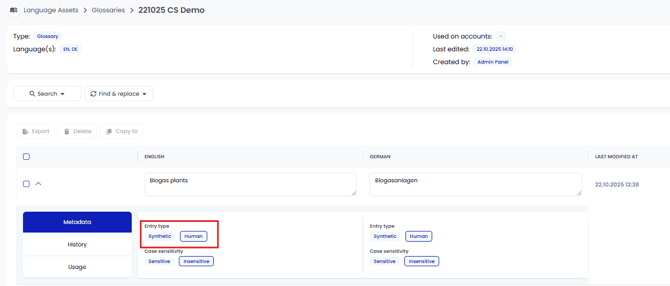
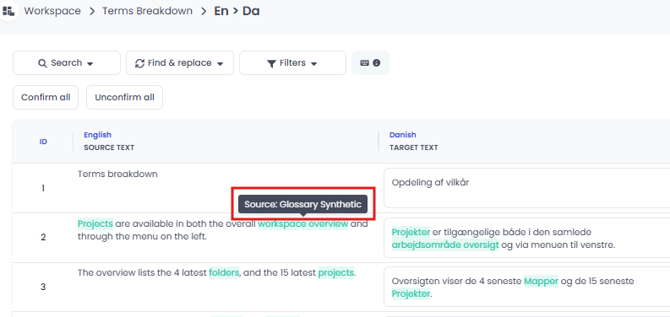
The AI-generated terminology is labeled Synthetic to distinguish it from terms created and/or adjusted by a human user. If you wish to review the glossary you can edit terminology in different places. As soon as a change is applied and saved, the entry type will change to Human. You can access glossary entries via the Language Assets tab in your EasyTranslate account or directly in any specific project. To learn more about where to find and how to manage terminology see our article about language assets HERE. Alternatively, you can add a term approval step to your workflow in order to have a linguist or internal user review the terms prior to the translation phase as described in the next section.
Part 2
Term approval
How the term approval feature is set up
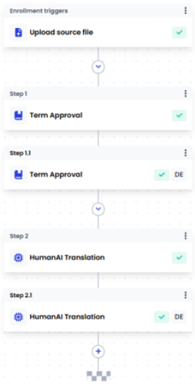 This feature builds on the term extraction and allows a linguist or internal user to review the AI-created glossary entries before they get applied to a project, thereby improving the overall quality of the language asset. The setup combines the term extraction and approval features with the translation step in one seamless workflow.
Adding the feature to the workflow:
The term approval feature is added as part of a HumanAI workflow and always preceeds the HumanAI translation step.
Good to know:
- This workflow step can only be used in combination with HumanAI translation
- Using this feature can incur additional cost. Please reach out to your customer success manager for setup and more information.
Warning:
- Running concurrent tasks for the same glossary and language is currently not supported. If you are trying to create a project that includes a term approval step for a glossary and language that already has an open term approval task, we notify the user that the open task has to be completed first.
Who can edit and approve terminology
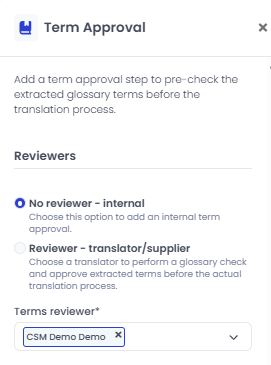
Depending on the setup, either a linguist or an internal customer user is assigned to a term approval task once the term extraction step is completed. If you choose to have a linguist review the extracted terms, we will make sure to include suitable freelancers in your workflow. Alternatively, you can involve an internal user. Please note that they need to have the necessary permissions to be granted access to the editor. You can ready all about roles and permissions HERE. Please contact your customer success manager or contact us via the website support chat for further information and help with the setup.
How to access and use the term approval editor
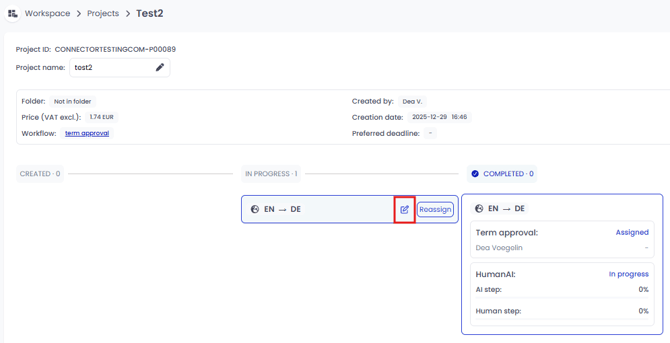
Once assigned, a linguist or internal user can access the term approval editor. As an internal user you access the editor by clicking on the review icon once the task is in the IN PROGRESS stage.
Once you open the internal review editor you will see this interface:
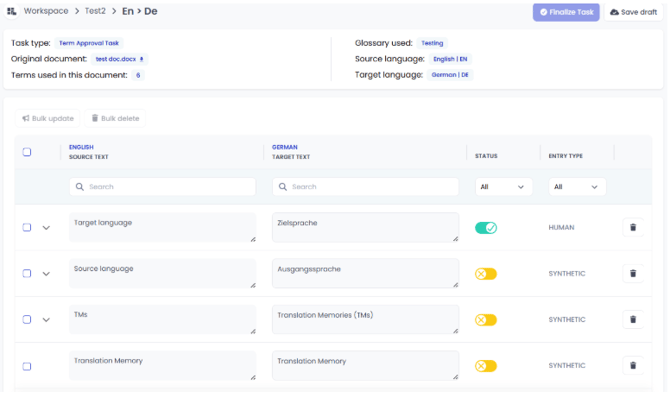
SOURCE TEXT and TARGET TEXT: The editor is structured as a table with the extracted source term in the left column and the translation in the right column.
STATUS: You can use the toggle in the STATUS column to indicate whether a term is already reviewed and accepted (green) or if the evaluation and confirmation is still pending (yellow). This helps you keep track of your revision progress. To confirm a term, simply click on the toggle so it moves right and turns green - the term is now confirmed. If the revision is still in progress and not finalized yet, you always have the possibility to unconfirm a term again by clicking on the toggle. Once the revision is done, make sure to re-confirm the term. In order to finalize a task, all terms need to be approved, no matter if a change was implemented or not.
ENTRY TYPE: As soon as a term is revised and the status modified, the ENTRY TYPE switches from SYNTHETIC to HUMAN. This label will be attached to the glossary entry and is shown in both the language asset(s) and the internal review editor.
Term removal: You can remove an extracted term from the list by clicking on the bin icon on the right hand side.
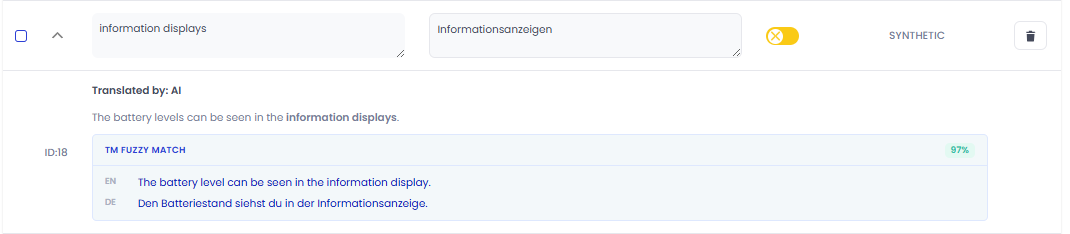
Expand view: Click the small arrow next to the source text to expand the view for a given term. This shows the section of text the term was extracted from, providing the context needed to review and adjust the translation. To support consistent translation even further, the system also displays existing TM fuzzy matches.
Save draft: By clicking on Save draft in the top right corner of the term approval editor, you are making sure that the progress you are making is not lost if you leave the editor. Once saved, you can come back to work on the saved draft at a later point.
Finalize Task: Once all terms are approved you need to finalize the project via the Finalize Task button on the top right. This will close the editor and trigger the project to automatically move to the translation phase.
Good to know:
- Once the task approval task is finalized, it can no longer be accessed. If you wish to make further changes you can access the internal review editor once the project is completed and implement the changes there. This is an easy way to adjust the terminology in the project and simultaneously update the connected glossary. For more info see the article about the internal review editor HERE.
The term approval editor offers a number of functionalities to facilitate work with the translated terms:
Search: You can use the search fields to look for specific terms for both the source and target text.
Filtering: You can use the filter in the STATUS and ENTRY TYPE columns to filter for specific entries.
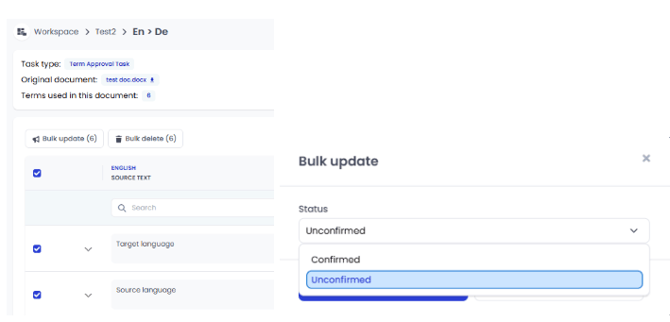
Bulk update: You can bulk update the status for all terms on a given page by setting the tick mark in the box in the header section. To include specific terms only, set a tick mark next to their source text(s). Use the drop-down in the dialog box to choose the status you want the selection to adopt. Confirm your selection by clicking on Update.