![logo_blue (1).png]](https://knowledge.easytranslate.com/hs-fs/hubfs/logo_blue%20(1).png?height=30&name=logo_blue%20(1).png)
Content
Part 1
Workflow Configuration
Machine Translation (MT) & Human Translation
Project Completion & Internal review
How to make changes to a workflow
Part 2
Supplier Assignment
Who can be assigned to HumanAI workflows
Who can be assigned to term approval tasks
Who can be assigned to human translation workflows
Who can be assigned to a human translation quality assurance task
Part 1
Workflow Configuration
Overview
The Automation Workflow feature has been carefully designed and developed to meet specific customer requirements and to enhance and optimise user experience. It allows users to create unlimited and highly customised automation project flows that align with their needs and that are vital to streamline processes.
Whether you wish to connect your string library with HumanAI, add an internal review step or simply want to make sure your assets are used in a specific way - the workflow feature lets you design all of this and more.
Click on Automation Flows in the side bar to see an overview of all your available customised workflows. By default, the project flows are displayed as cards, showing the name, the creation date, the last date the flow was modified, the status (On or Off) and the domain/area of expertise. Alternatively you can choose a list view by clicking on the row icon next to the Create flow button on the top right. The filtering options let you search your workflows by name, area of expertise/domain and source and target languages.

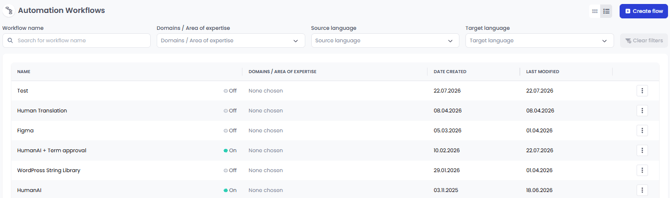
When a flow is active the card is set to On and shows a green light. If your flow is inactive its status is set to Off. Please note that a flow set to Off cannot be selected during project creation. You can delete a workflow by clicking on the three dots and choosing Delete flow.
Warning
- Your HumanAI automation flows are tailored to your specific needs and set up by your AI training specialist. If you have any questions or would like to make changes to an existing setup, please reach out to us , as doing so could cause the workflows to stop working properly.
How to get started
A new flow is created via the Create flow button in the top right corner. 

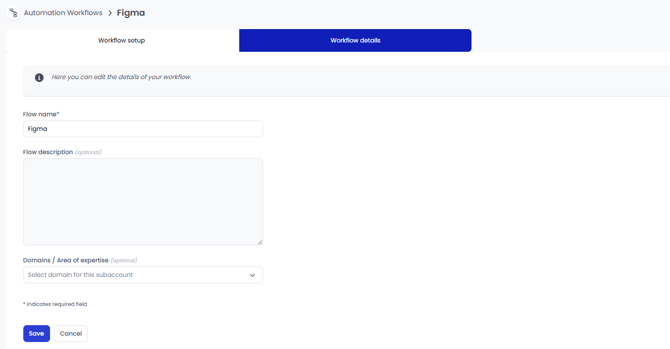
Once you click on Create flow a dialog will open and prompt you to give the new automation workflow a name and a description. After clicking Create flow, you can update or expand both the name and the description later in the Workflow details tab. Confirm your entries by clicking on Create flow. The newly created flow is now added to the Automation Workflow overview. To help oganise your workflows, we suggest you add a label to help organise your setup, which is especially useful if your account includes workflows for different project- and content types.
Warning:
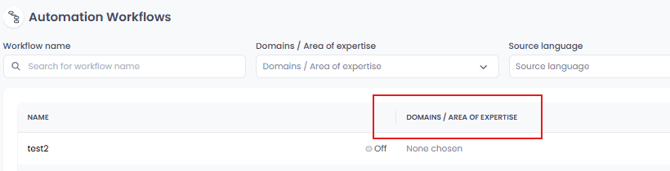
- Please deactivate all filters before creating a new workflow. If a filter is active, you will not be able to see the workflow in the overview.
Clicking on the workflow name will open the Workflow setup tab where you build your custom workflow. By default any new flow is inactive (OFF) and can be activated during setup as described in the next section.
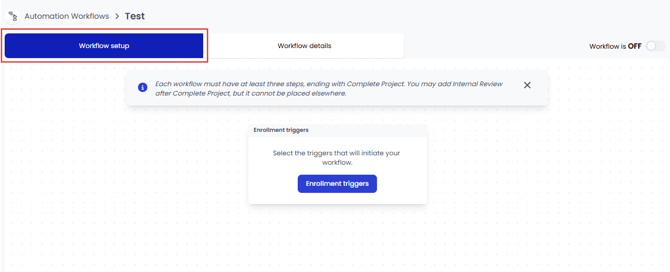
To add description or change the workflow name go to the Workflow details tab.
How to configure a workflow
Overview
Click on Enrollment triggers and proceed to Choose an action on the right to start the workflow customisation. You can choose from the following ten actions:
|
1 |
String Library |
Translate your string library using a specific workflow. |
|
2 |
Upload source file |
Use this trigger to start the workflow by uploading a source file. |
|
3 |
Term Approval |
Add a term approval step to pre-check extracted glossary terms before the translation process. |
|
4 |
HumanAI |
Use highly customised AI-powered translation for fast and automated content translation with humans in the loop. |
|
5 |
Machine Translation (MT) |
Automatically translate content using non-customisable machine translation. |
|
6 |
Human Translation |
Assign a professional freelancer to translate your content. |
|
7 |
Review |
Assign a reviewer to further review and refine a translation. Only available in connection with a preceding Human Translation or HumanAI step. |
|
8 |
Internal Review |
If you or a member of your team want to revise translations internally add this step after the Complete Project step to gain access to the internal review editor. |
|
9 |
Complete Project |
Finalise your workflow - only the Internal Review can follow this step. |
|
10 |
Quality Assurance |
Add a QA step to have a freelancer perform a quality check before project completion. Only available for Human Translation. |
To facilitate the creation of your flow, the triggers you can choose from depend on the current workflow configuration. This ensures that your flow keeps a coherent logic.
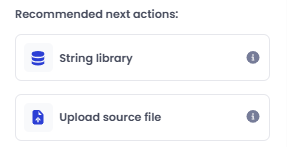
To start your flow, select one of the two available actions in the Choose an action section - String library or Upload source file.
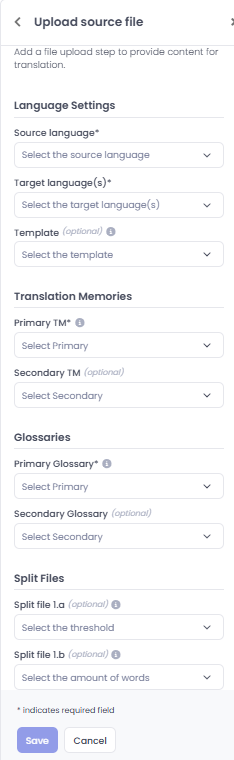 Upload source file: This trigger requires you to upload a file to the platform to provide content for translation. Please provide all required information necessary to activate the project flow.
Language Settings: Choose your source language and add as many target languages as needed. Make sure that you have the relevant freelancers onboarded to your account. For information about how to onboard your team see HERE.
Template: Templates are used to store pre-set configurations used during project creation and processing. They ensure that repeat project criteria, such as formatting and AI model configuration, can be maintained across projects. Templates are configured by your AI training specialist who can answer any questions you might have. If you leave this field empty the system will create a default template for your chosen source language. Note that a default template should never be used with HumanAI.
Translation memories (TMs) and glossaries: These fields let you connect translation assets available in your account. Please note that the primary TM and glossary are set up to both read from and write to the asset. Secondary assets are used to provide matches and suggestions, but new segments and terms are not 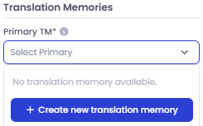 added there. If you do not yet have any assets in your account, you can create a new TM and glossary during workflow creation. Simply click on the TM and glossary drop-down field and select Create new translation memory/glossary. You can find more information about language assets HERE.
Split file: The system offers the opportunity to split a file into several tasks upon project creation. This provides you with the opportunity to assign each sub-project to a different linguist to speed up turnaround. This is recommended for larger Human Translation projects.
When done, click Save to continue.
String Library
This action lets you connect a string library to a specific workflow. Choose the libraries you would like to pair with this workflow from the drop-down menu (left) and customise your string automation via Type (right). If you choose Manual, you will always need to start the translation manually. You can also automate the project creation by choosing Auto and setting a trigger threshold. A value of 50 indicates that if more than 50% of your strings are not translated, the flow will be triggered and the translation started automatically. It is possible to set the trigger to 0% to support a full string library automation. You can read more about the String library HERE.
 When done, click Save to continue.
Good to know:
- If you use the String library trigger to start off the workflow, you will still be prompted to add the Upload source file to your flow as a next step. Then follow the steps described above.
- Each string library can only be attached to one workflow but a workflow can be connected to several libraries.
Warning:
-
Automated string library jobs run every 30 minutes, on the hour and at half past the hour. With a 0% threshold, even a single string key added during a 30-minute window will automatically start a project at the next sync.
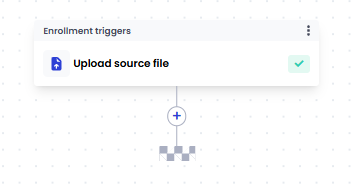
- To continue the setup click on the plus in the workflow and choose one of the next recommended actions:
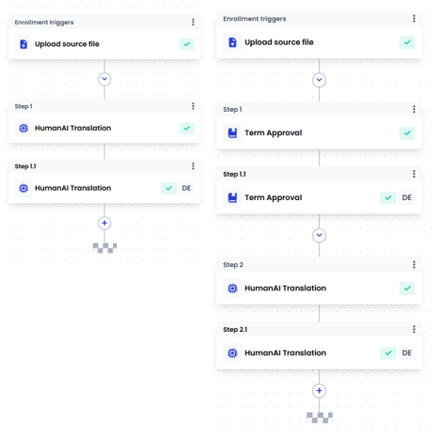 HumanAI & Term Approval: The HumanAI workflow can be preceded by a Term Approval step. Please note that this feature is only available in combination with HumanAI.
Good to know:
- A HumanAI setup is designed and maintained by your AI training specialist who will make sure that the flow is tailored to your specific needs.
Machine Translation (MT) & Human Translation: you can use Machine Translation as the main step in your workflow or use it in combination with Human Translation. Note that you will need to add the required languages and assemble a team of freelancers in order to use the MT trigger with Human Translation. 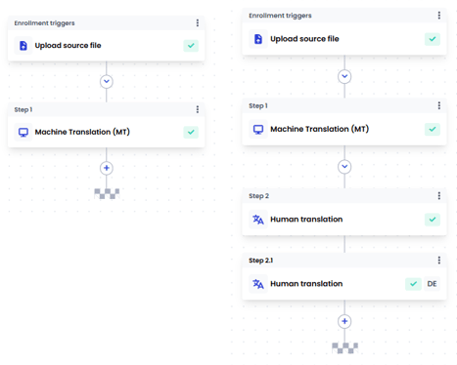
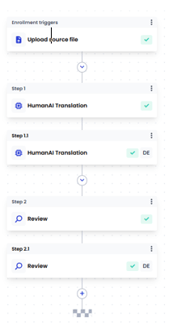
Review: an additional review step can be added to the workflow after either the Human Translation or HumanAI step. To use this step you are required to onboard a reviewer to your freelancer team. They will perform a full review of the translated content.
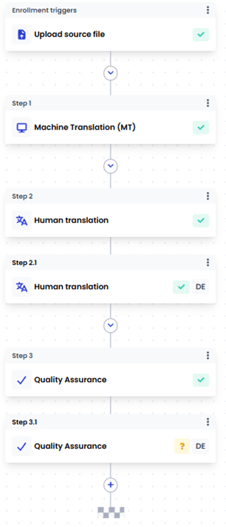
Quality Assurance: this additional QA step can only be added after a Human translation. A freelancer will perform a quality check on a representative sample before project completion. The setup lets you define the frequency as well as the QA parameter thresholds according to your requirements.
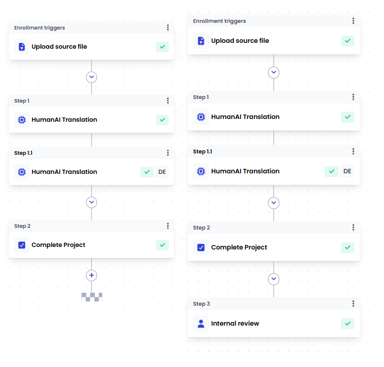
Project Completion & Internal review: this trigger will finalise your workflow. The only subsequent step you can add is the Internal review which lets you or a member of your team make changes to the translation output and save it to the translation memory.
How to activate a workflow
In the draft stage changes to the workflow are automatically saved. Once set up, you can activate and deactivate the flow using the toggle on the top right. Note that if the workflow is set to Off it won’t be available and displayed in the drop down menu during project creation.
How to make changes to a workflow
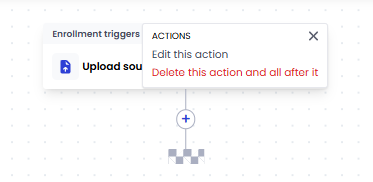
In order to change a step in the workflow, proceed to the trigger you would like to change and click on the three dots for more options. You can choose between Edit this action or Delete this action and all after it. To avoid workflow logic issues, all steps after the step you wish to change will be deleted and you will need to manually finalise the workflow again.
Part 2
Supplier Assignment
Overview
In order to configure your workflows you need to define who should be assigned to a specific task. The assignment is done during workflow setup. You can assign linguists from the EasyTranslate database or choose internal collaborators to be assigned to your HumanAI workflows. Please make sure to onboard them to your account ahead of time. For details please refer to our articles about Supplier onboarding HERE.
Definitions:
-
External supplier/freelancer: a linguist onboarded from the EasyTranslate supplier database
-
Customer user: an internal colleague onboarded to the customer account.
-
Internal supplier: a supplier onboarded from the customer’s own linguistic team. They get onboarded via the supplier page and have the same access and views as external users/freelancers.
Who can be assigned to a HumanAI workflow
Good to know:
-
Your HumanAI automation flows are customised to match your specific needs and are configured by your AI training specialist. Please reach out to your customer success manager to discuss your setup.

Customer user:
You can assign a colleague to your HumanAI translation or associated review tasks. They are invited to your account via the Users page and are added to your workflow via the Internal reviewer drop-down during workflow configuration.
If you want to learn more about how to invite your colleagues to the platform, please see the Supplier onboarding documentation HERE.

Internal Supplier -> Select internal suppliers:
This allows you to include your internal suppliers in a HumanAI Translation workflow The team is invited to your account via the Suppliers page. The pre-screening function enables you to bulk-assign the task to all your linguists so they can screen and accept or decline the HumanAI Translation or Review task. If this feature is disabled, the system will automatically pick someone from the list and assign the task.

Internal Supplier -> Assign via API:
This gives you the possibility to assign your internal suppliers directly from your backend via your API integration. The team needs to be invited to your account as internal suppliers via the Suppliers page. The supplier list on the platform is left empty.
If you want to learn more about how to onboard your internal linguist team to the platform, please see the documentation on Supplier onboarding HERE.

External Supplier/Freelancer:
Insert one or several linguists which you onboarded from the EasyTranslate database.
Good to know:
- The possibility to add a Customer user to tasks is only available for HumanAI workflows (also with optional review step).
- The possibility to select Internal supplier is only available for HumanAI + Review workflows.
Warning:
- The same email address can only be registered once on the platform. If a user wants to be assigned as both a customer user and internal supplier, you have to invite them using different email addresses.
Who can be assigned to a term approval task

This feature is only available for HumanAI workflows. Assign either a Customer user or an External linguist/freelancer from the EasyTranslate database to the task.
Who can be assigned to a human translation workflow
 Tasks using a human translaton workflow can exclusively be assigned to external suppliers/freelancers sourced from the EasyTranslate database. Add linguists to your supplier team via the Suppliers page. If you add a review step you will need at least 2 linguists per language combination. Once onboarded, select them from the drop-down lists.
If you want to learn more about our freelancer database and how to pick the right team, please see the Supplier onboarding documentation HERE.
Who can be assigned to a human translation quality assurance task

This service is only available for Human Translation workflows using external suppliers/freelancers from the EasyTranslate database. Assign a reviewer from your external supplier/freelancer team as the Translator performing QA and define which linguist should be reviewed in the Translator subject to QA from the dropdown.