![logo_blue (1).png]](https://knowledge.easytranslate.com/hs-fs/hubfs/logo_blue%20(1).png?height=30&name=logo_blue%20(1).png)
Content
Part 1
EasyTranslate String Library - setup and maintenance
How to use the EasyTranslate String Library
How to create a string library in EasyTranslate
How to view your string library content
How to add a target language to an existing string library
How to delete a target language in an existing string library
How to add a new string to your library
How to update the name or description of a string library
How to download a string library
How to delete a string library
Part 2
Management, translation and revision of EasyTranslate String Library entries
What are the different options to start a translation
How to select specific keys for translation - filtering options
How to select specific keys for translation - key labelling
How to avoid that the same key gets translated twice
Where to review translations
Part 1
EasyTranslate String Library - setup and maintenance
What is a String Library
A string library is used to store, manage and retrieve all translatable text (words, sentences, UI labels etc.) in different languages within a software application. Instead of being part of a file, each string is stored as a row in a database. It helps your program display the right text in the user’s language and keeps all content organised. A string library simplifies updates and ensures that consistent translations are used throughout platforms and applications. String libraries are typically used in:
- Software app and development platforms
- Websites and content management systems
- Localisation management tools
- Gaming applications
How to use the EasyTranslate String Library
You can mirror your string setup in a string library on EasyTranslate. This will let you translate, synchronise and re-use your translated content whenever necessary. This way you won’t need to handle files manually but can push content directly to your EasyTranslate library, translate it and ultimately pull it back into your applications, platforms and tools. The connection to EasyTranslate is facilitated by a number of no-code plugins and our custom API. You can find an overview of available connectors and the API documentation in your EasyTranslate account under Integrations. If you need more information on how to set up and use a specific plugin with your systems you can read about them HERE. Do not hesitate to contact your customer success manager for further information and help with the setup.
How to create a string library in EasyTranslate
Before connecting your system to EasyTranslate you need to set up a string library in your account. To log in to EasyTranslate and proceed to the tab String Libraries in the menu on the left hand side. Click on Create library on the top right and fill in the required information. Finally, confirm with Create library.
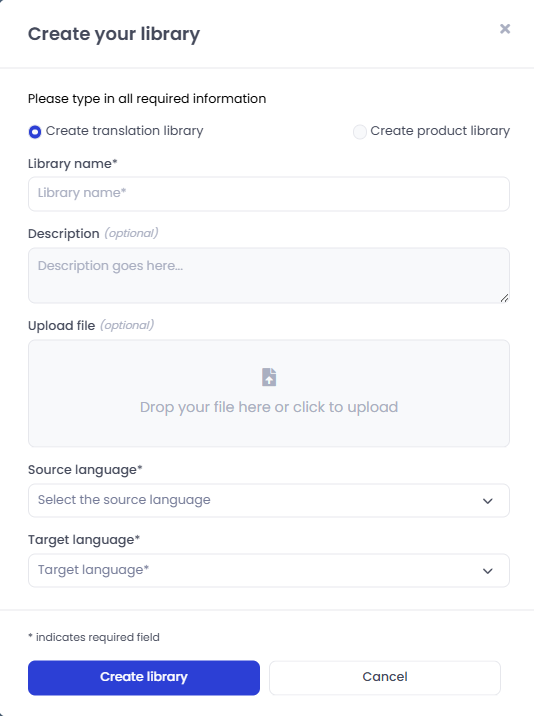
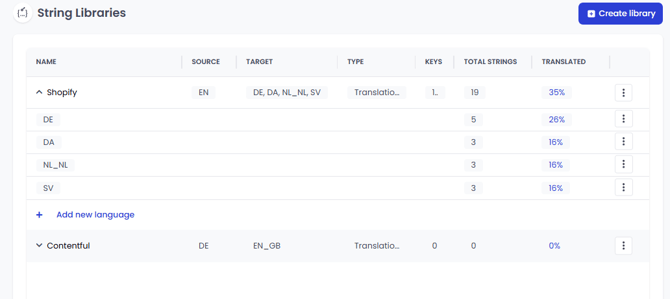
Once you have created your string library, it appears in the string library overview. It displays details about the library, including the name, source language code and target language code(s). Once you start to synchronise and translate your strings this view also lets you monitor the total number of added strings and the percentage of translated content.

Click on the dropdown arrow next to the library name to access a breakdown of the progress of the individual languages. It's a convenient way to stay updated on the status of your library and manage your translated content.
How to view your string library content
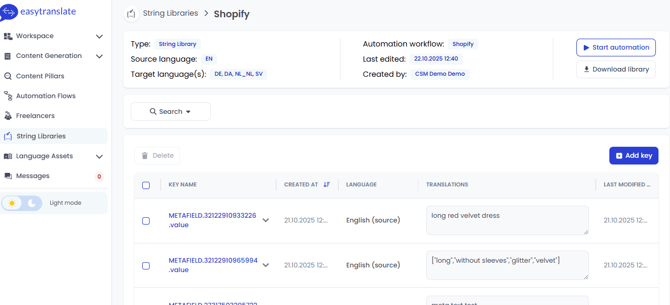
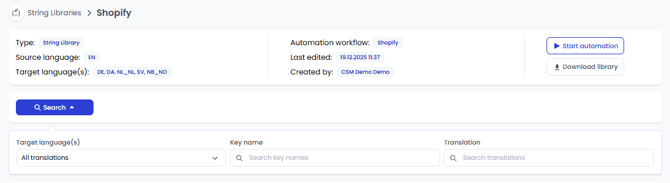
To access a detailed overview of the content of your library, click on the library name in the overview. This will open an editor displaying all available keys that have been pulled from your system(s).
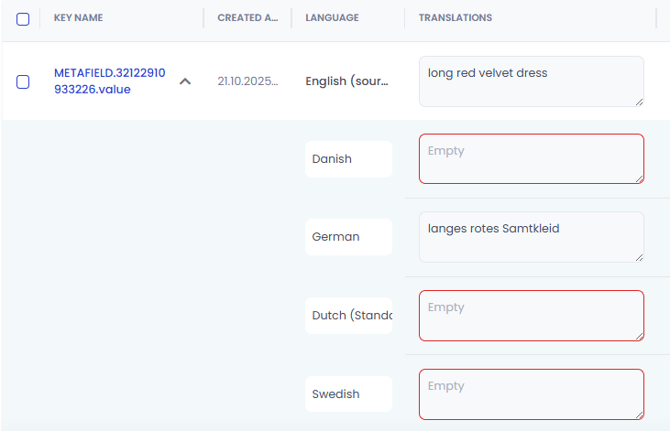
To view the translation status of a specific key, click on the small arrow next to the key name to expand the view.
How to add a target language to an existing string library
You have the option to add a new target language to your string library, irrespective of the translation status of the already added languages.
- Click on the arrow next to the name of your library to view its full details
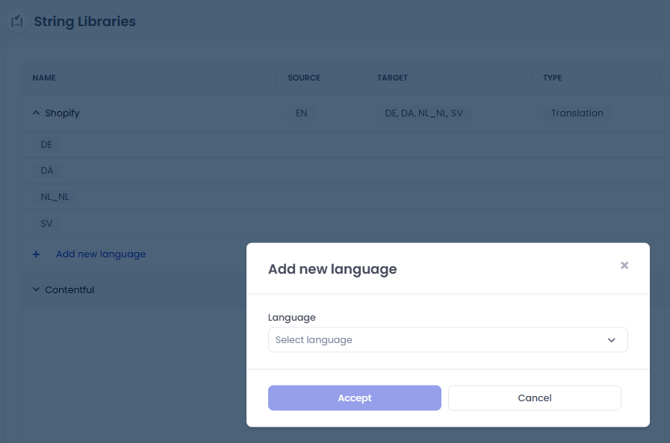
- Click on Add new language and select the target language you want to add.
- Click Accept in the dialog.
The new language is now added to your library and is shown in the overview.
Good to know:
- Adding a new language to your string library requires an update of the connected translation assets, workflows and AI models as well as an expansion of your linguistic team. Please reach out to your customer success manager to get started.
How to delete a target language in an existing string library
-
Click on the arrow next to the name of your library to view its full details
-
Click on the on the right hand side and choose Delete from the drop down.
-
Confirm the deletion in the dialog.

How to add a new string to your library
New strings are added by synchronising your content from your systems and platforms to EasyTranslate via a plugin or custom API. Depending on the type of integration all missing strings or only specific strings can be added to your string library for translation. You should never create keys directly in your library but exclusively pull them in via your integrations.
Good to know:
- When you synchronise your library, both the source text and all existing translations are sent to EasyTranslate. If you want certain content to be re-translated, make sure to delete the existing translations in your store before syncing. This ensures that only the translations you want to keep are pushed to EasyTranslate.
How to delete keys
To remove a key or multiple keys that are no longer needed, you have the option to delete them:
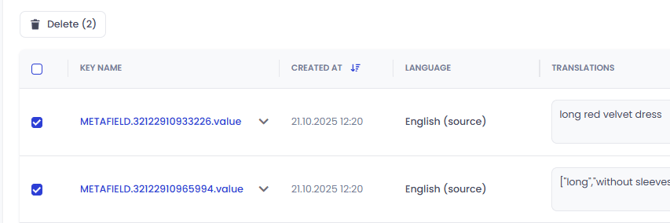
- Select the checkbox next to the key(s) you want to delete.
- Click on the Delete button located above the header section.
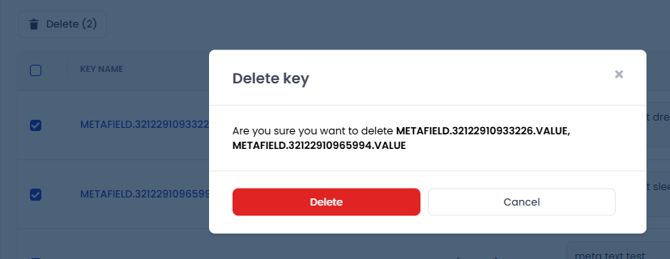
- In the dialog, click on Delete to confirm your request.
- Your selected key(s) will now be deleted.
By following these steps, you can easily remove any unnecessary keys from your string library. Keys from multiple pages can be selected and deleted at the same time.
How to update the name or description of a string library
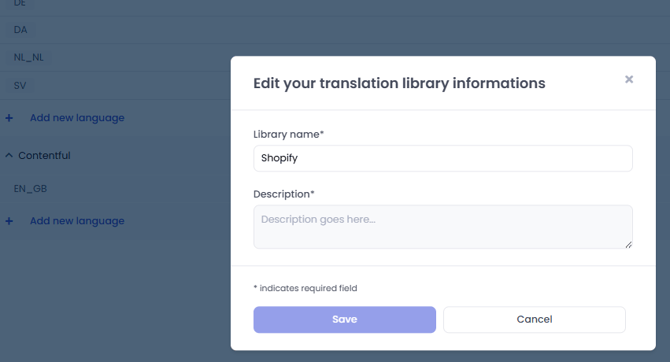
If you need to update the name or description of your library, follow these steps:
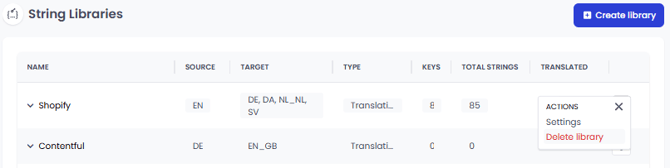
- Click on the three dots next to the library entry for more options.
- From the dropdown menu, select Settings.
- Make the desired changes to the name or description.
- Click on Change to confirm the updated name or description.
This allows you to keep your translation library up to date with accurate and relevant information.
How to download a string library
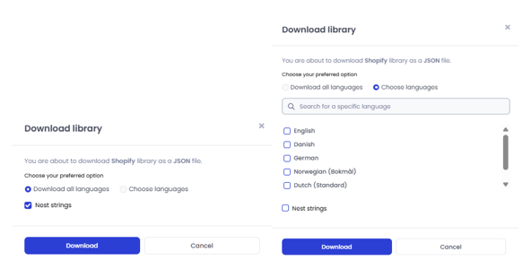
You have the possibility to retrieve a backup copy of your string library content on the platform. You can download a JSON file with all content from within your string library by clicking on Download library on the top right.
Before downloading the data you can choose the data structure and the languages you would like to extract. Confirm your choices by clicking on Download.
How to delete a string library
To delete your string library go to the string library overview and follow these steps:
- Click on the three dots next to the library entry for more options.
- Select Delete.
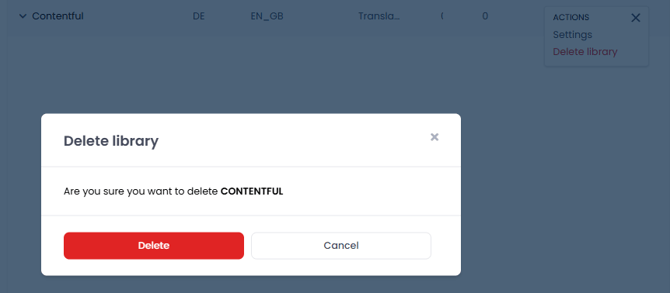
- Confirm the deletion in the dialog.
Warning:
- It is important to note that once a string library is deleted, it can’t be recovered. We thus recommend downloading the latest version from the platform before proceeding with the deletion.
Part 2
Management, translation and revision of EasyTranslate String Library entries
What are the different options to start a translation?
Depending on the level of integration with our system you start the translations manually on the platform, use the string library automation or start the process via your custom API.
Once the translations are completed, the system will send a notification to the user that created the project. At the same time the content will be moved to the string library where you can see them when expanding the detailed string/key view. Depending on your integration you need to pull the strings back via the platform or your system.
Manual project creation:
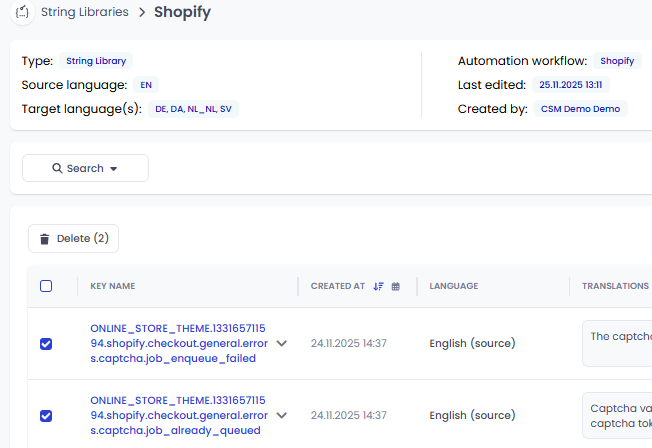
Once you have synchronised your strings to EasyTranslate you can manually start your translation automation. All selected keys will be combined into one project per language.
To include specific keys in a translation project, set a tick mark next to the key name(s). Use the different string library search options to filter (see HERE) for keys you would like to include in a project. If you want to combine all untranslated strings in a single translation project you don’t have to choose any specific keys - the system will automatically add all missing keys.
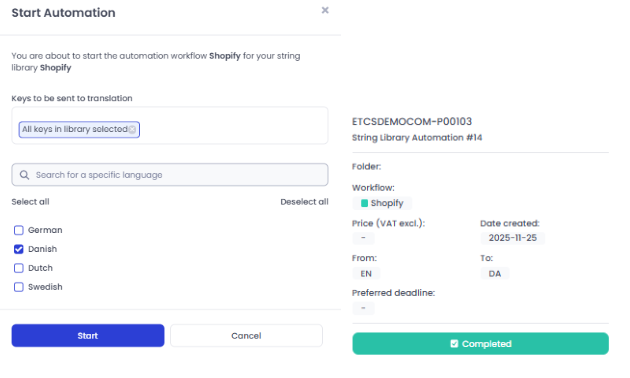
Once the selection is ready, click on Start automation on the top right to start the process. The dialog lists all keys that will be included in the translation project. From here you can still remove keys before creating the project. Choose the language(s) you would like the strings to be translated to and click Start. This will trigger the project creation and you can follow the progress by going to Workspace -> Projects.
Good to know:
- The translation of your project will only start automatically if you have pre-defined a price threshold in the price limit filter. Otherwise the system will ask you to approve the price first for each project. Read all about the price limit filter HERE.
Automatic project creation:
In order to automate the string translations, the platform offers the possibility to set a trigger threshold in your workflow. Once the defined threshold is exceeded, a translation project is created automatically. The system checks every whole and half hour to determine the amount of strings of a given target language that are untranslated. Read more about automation workflows and how to set the trigger threshold HERE.
API Integration:
You can connect your systems to our string library and fully customise the setup using our API integration. For details please see our API documentation HERE.
How to select specific keys for translation - filtering options
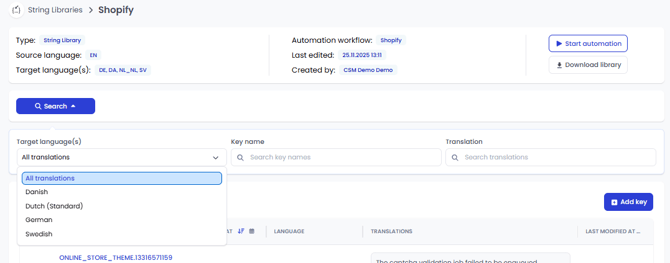
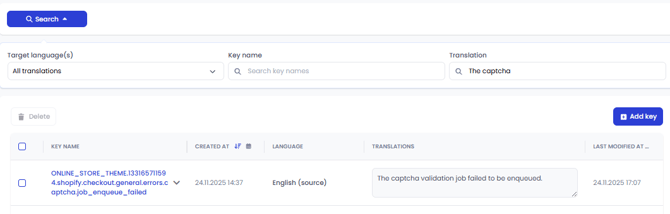
The system provides a number of filtering options in case you want to find specific keys or choose and send selected keys for translation. To expand the filter view, click on the Search button.
Filtering by language: In the Target language(s) filter choose All translations or a specific language to be displayed in the detailed key view.
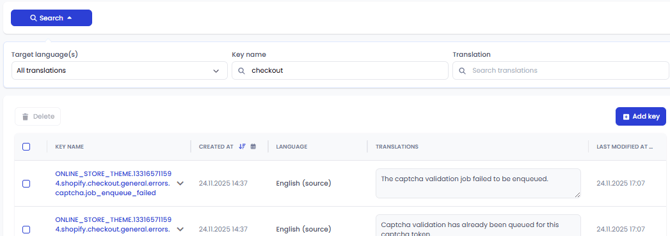
Filtering by key name: Use the Key name filter to find specific strings or insert a keyword to get a list of keys belonging e.g., to the same entity or item.
Filtering by content: Use the Translation filter to find a key with a specific source or target content.
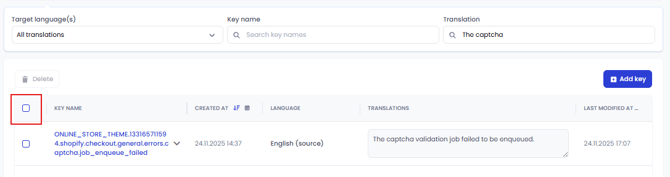
Key selection: Tick the box next to KEY NAME to select all keys on this specific page. You can always remove keys you don’t want by removing the associated tick mark on the left.
Warning:
- Selecting all keys applies only to the current page. However, you can select keys across multiple pages by making selections on one page and then proceeding to others; previously selected keys are preserved when you add new ones.
 Filtering by creation date: You can create a list of keys that were created on a specific date. Click on the calendar icon in the CREATED AT header and choose the date(s) you would like to have extracted. Note that you need to choose one or several fixed dates rather than intervals. Use the arrow icon to sort the date selection.

How to select specific keys for translation - key labelling
Key labelling supports string library management and streamlines project creation. You can apply one or more labels to each key in your library, allowing you to group and select keys by criteria such as project, affiliation or priority. These labels help you structure your database and simplify the process of reusing key selections when adding new languages to your system. The labels associated with the keys are listed in the string library overview under LABELS.

Creating, removing, and renaming labels: To create a label, click Manage labels and add the labels you wish to use to organize your string library. You can add new labels at any time. To remove a label, click the x next to it. If you need to rename a label, navigate to Manage labels, delete the existing name, and enter the new one.
Warning:
-
You can remove a label at any time but be aware that this will remove it from all associated keys. To remove a label from specific string search for the key and remove it by clicking on the x.

Assigning a label: To assign one or several labels to a specific key go to the LABELS column and select the label(s) you would like to add from the dropdown.
Bulk assigning a label: You can assign one or multiple labels to a set of keys. First, select the keys from the overview. While selecting all keys only applies to the current page, you can select keys across multiple pages; your previous selections are preserved as you navigate. Once you have selected your keys, the Bulk edit labels button will be enabled, indicating the total count of selected keys. Click this button to open a dialog where you can add or remove labels, then click Apply changes to confirm.


Starting an automation: Once your labels are defined, you are ready to start the translation automation for your key selections. Click on Search to expand the filter view and select the relevant labels in the Labels field. After applying the filter, ensure you select the keys across all pages before initiating the translation automation.
How to avoid that the same key gets translated twice
The string library automation is configured in a way that the same key is never sent to translation twice. Whether you choose to include specific keys or the entire string library in an automation, the system detects keys that already have a translation and will exclude them from project creation.
How the system prevents duplicate translations:
- Already translated keys are automatically skipped and will not be added to new projects.
- Keys currently included in a project with a pending status are also blocked from being added to another project until their status changes.
If you launch an automation for specific keys, you must either accept or decline that project and wait until it moves to In Progress stage before starting another automation that includes any of the same key
Where to review translations
If you wish to review and change any of the string translations we strongly recommend you exclusively work in the Internal Review Editor which you can access individually for each of your projects. Making the changes in the editor is the only way to implement the updates automatically across all relevant features. The amended translations are added automatically to your translation memory and glossary entries can be updated while editing. On top of that the string library gets updated which enables you to synchronise the edited translations back to your system(s). Finally, it ensures that your HumanAI models continuously learn from your input and preferences. You can find more info on how to access and use the Internal Review Editor HERE.